

Ever picked up your phone in the morning only to watch it drop from 100% to 20% by lunchtime—when it used to easily last all day? You’re not imagining it. It’s not a software bug or “bad signal.” It’s your smartphone battery health quietly declining behind the scenes.
In this ultimate guide, we’ll break down exactly what battery health means, why it drops (the science is surprisingly fascinating), how to check it on iPhone or Android, and the proven 2026 strategies to keep your battery at 90%+ for years. No fluff, no myths—just actionable, expert-backed advice that actually works.
Let’s dive in.
What Is Smartphone Battery Health (and Why Should You Care)?
Battery health is a percentage that shows your battery’s current maximum capacity compared to when it was brand new.
- 100% = It holds a full charge like day one.
- 85% = It only holds 85% of its original juice—so you get noticeably shorter battery life.
- Below 80% = Most manufacturers (Apple, Samsung, Google) recommend replacing it.
It’s not the same as the % you see in your status bar (that’s just current charge). Battery health measures the total tank size—and that tank slowly shrinks over time.
Why does this matter? A healthy battery doesn’t just mean longer screen time. It also prevents unexpected shutdowns, keeps performance snappy, and saves you from buying a new phone every 2 years.
The Science Behind Lithium-Ion Battery Degradation (Simplified)
Your phone uses a lithium-ion battery—tiny chemical powerhouses packed with lithium ions that shuttle back and forth between the anode and cathode during charging and discharging.
Here’s what happens as it ages (visualized below):
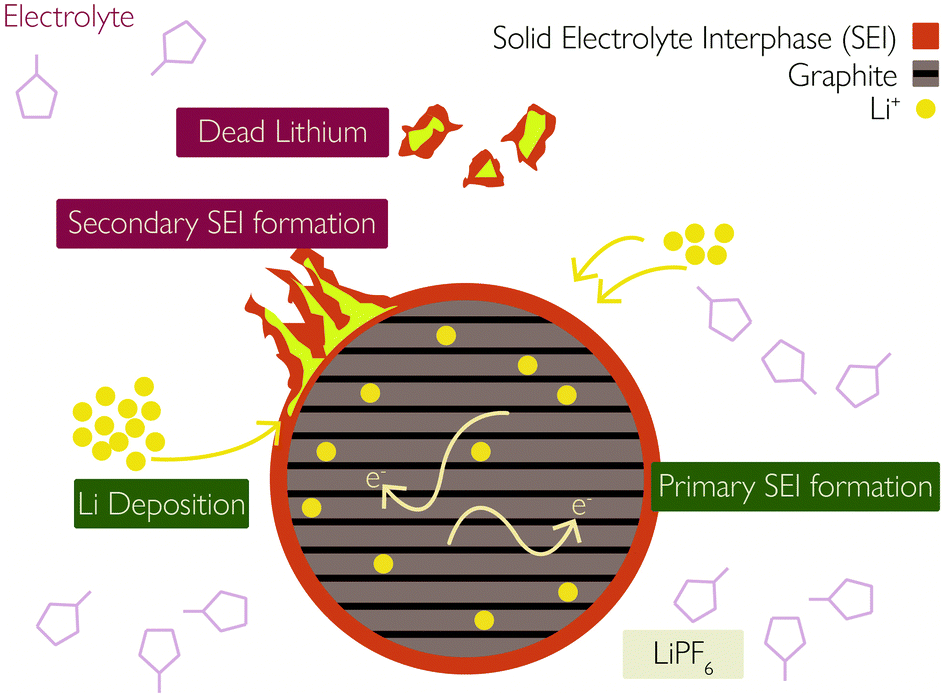
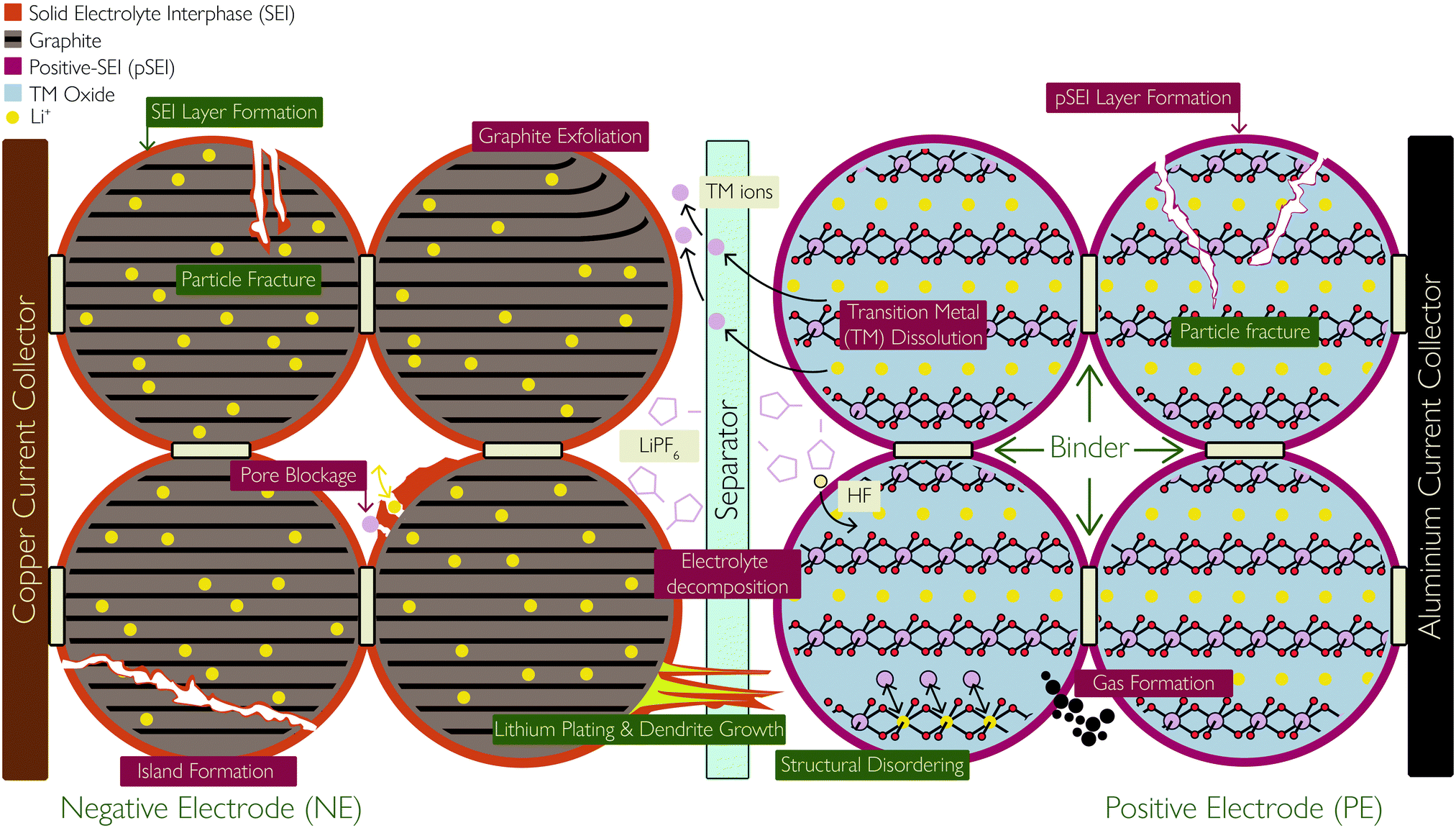
Over time:
- A solid electrolyte interphase (SEI) layer builds up, trapping lithium ions.
- Particles crack, metal dissolves, and “dead lithium” forms.
- Heat, fast charging, and full 0-100% cycles accelerate these reactions.
Result? Your battery’s “tank” gets smaller. Manufacturers design phones so you notice it around 500–800 full charge cycles (roughly 1.5–2 years of heavy use).
What Actually Kills Your Battery Health? The Top 7 Culprits
- Heat – Public enemy #1. Charging in a hot car or under direct sun can permanently damage cells. Ideal range: 62–72°F (16–22°C).
- Full 100% charges every day – Modern phones stop at 100%, but staying at 100% stresses the battery. The sweet spot? 20–80%.
- Fast charging too often – 65W+ chargers generate heat. Great for emergencies, bad for daily use.
- Deep discharges (0% too often) – Lithium plating happens when you drain it completely.
- Age & charge cycles – Even with perfect habits, chemistry wins eventually.
- Extreme cold – Temporary capacity loss, but repeated freezing isn’t great.
- Leaving it at 0% or 100% for days – Both extremes are bad.
How to Check Your Smartphone Battery Health in 2026
On iPhone (iOS 18+ / iOS 19)
Super simple and accurate:
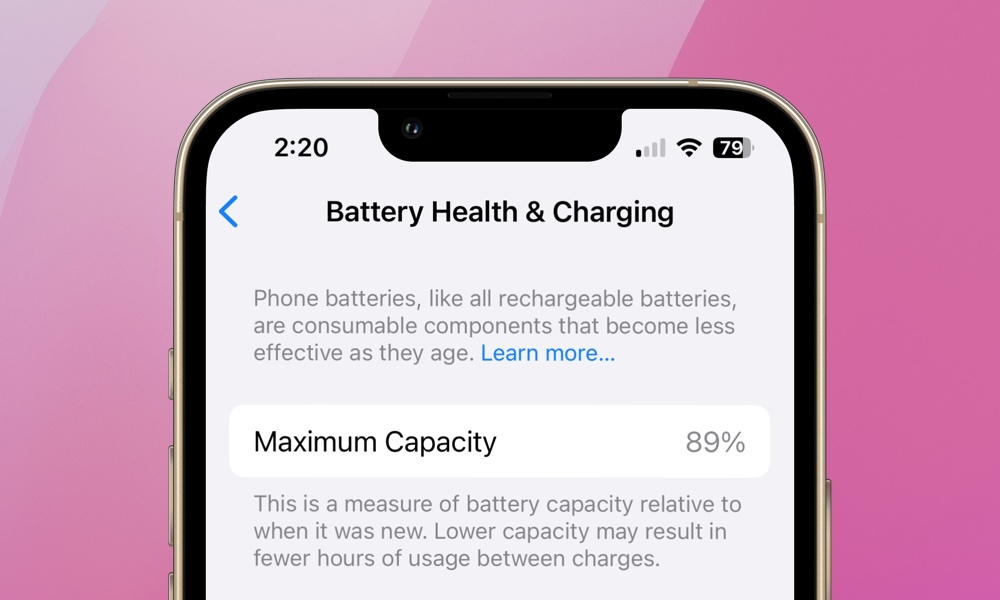
- Go to Settings > Battery.
- Tap Battery Health & Charging.
- You’ll see Maximum Capacity (the key % number) and Peak Performance Capability.
Bonus on iPhone 15/16 series: Tap the percentage for cycle count, manufacture date, and first-use date.
Here’s exactly what it looks like:

Pro tip: Enable Optimized Battery Charging and Clean Energy Charging—they learn your routine and hold at 80% until you need it.
On Android (Pixel, Samsung, OnePlus, etc.)
Android is more fragmented, but here’s how to check in 2026:
- Google Pixel: Settings > Battery > Battery health → Shows % and status (Normal/Good).
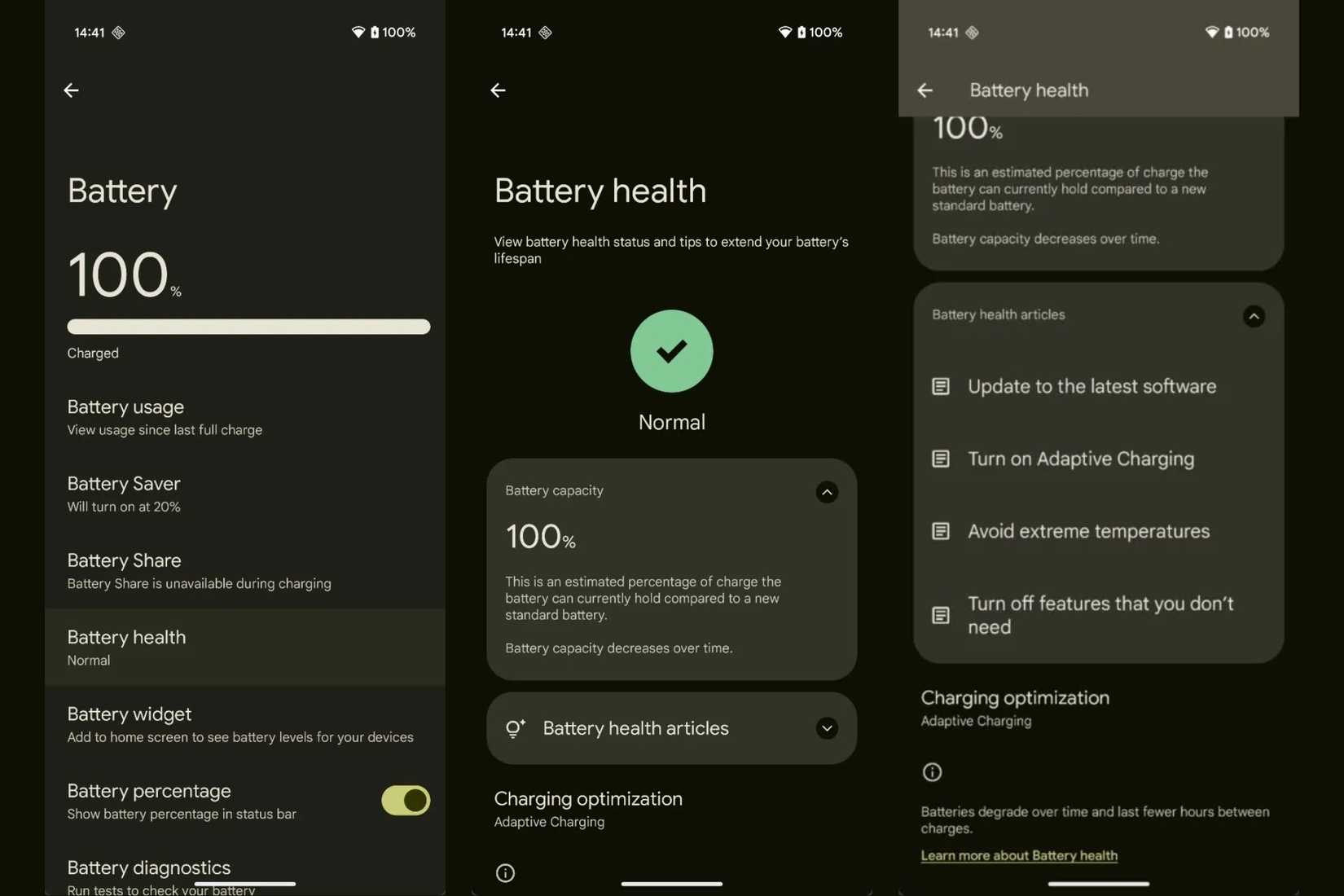
- Samsung Galaxy: Open Samsung Members app > Diagnostics > Battery status (or Settings > Battery and device care).
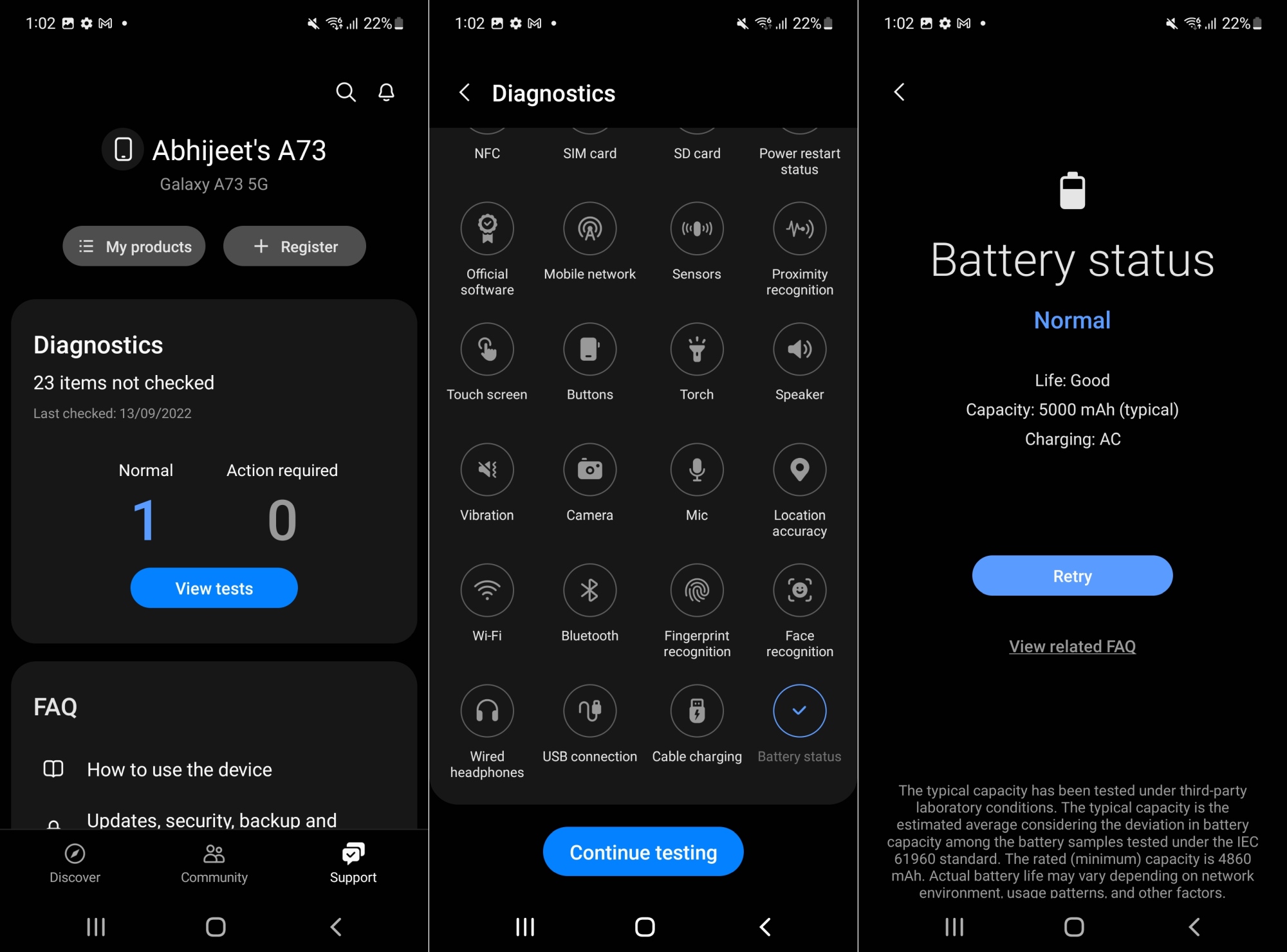
Here’s how to check battery status/health on your Samsung Galaxy device – SamMobile
- Any Android: Dial *#*#4636#*#* → Battery Information (shows health, temperature, voltage).
- Most accurate long-term: Install free AccuBattery from Play Store. It learns your battery over weeks and gives a precise health estimate.
10 Proven Ways to Improve & Maintain Battery Health in 2026
- Charge to 80% max – Use built-in limits (iPhone Optimized Charging, Samsung Protect Battery, Pixel Adaptive Charging).
- Avoid heat like the plague – Never charge in a hot car or while gaming + charging.
- Enable adaptive features – Dark mode, Adaptive Battery, 60Hz refresh rate when possible.
- Update software religiously – New versions often include battery optimizations.
- Use original or high-quality cables – Cheap chargers cause inefficient charging.
- Turn off unused radios – Always-on Wi-Fi, Bluetooth, and 5G drain cycles unnecessarily.
- Keep it between 20–80% – This single habit can add 1–2 extra years of life.
- Clean up background apps – But don’t obsess—Android and iOS manage this well now.
- Replace the battery, not the phone – At 80% health, a $50–80 replacement feels like a brand-new device.
- Use Battery Saver strategically – Not all day, but when you’re below 20%.
Here’s a quick visual summary of the best habits:

Common Myths Debunked
- “Closing apps saves battery” → Mostly false on modern OS. They’re already optimized.
- “Overnight charging destroys the battery” → Not true if you use optimized charging (it stops at 80–100% intelligently).
- “Wireless charging is worse” → Slightly less efficient = more heat, but modern pads are fine for occasional use.
Check This: How to Speed Up a Slow Smartphone in 2026: 15 Proven Tips That Actually Work (Android & iOS)
When Should You Replace Your Battery?
Apple/Samsung/Google officially recommend it at 80% health or when you notice:
- Phone shuts down at 20–30%
- Slower performance (iPhone shows “Performance management” warning)
- Battery drains unusually fast even after a full charge
The Future of Smartphone Batteries
In 2026 we’re already seeing:
- Better silicon-anode cells (more capacity)
- Improved software AI that predicts and protects health
- Early solid-state prototypes promising 2x lifespan
But until they’re mainstream, the tips above remain your best defense.
Final Thoughts: Take Control of Your Battery Health Today
Your smartphone battery isn’t dying because it’s “old”—it’s dying because of daily habits you can change right now.
Check your battery health percentage in the next 60 seconds. If it’s above 90%, you’re golden. 85–90%? Start the 20–80% rule today. Below 80%? Consider a replacement—it’s cheaper and greener than a new phone.
What’s your current battery health %?
Share this guide with anyone complaining their phone “doesn’t last anymore.” Small habit changes = years of extra life.
Stay charged, stay smart. 🔋
Last updated: March 2026 | Sources include official Apple, Samsung, Google, and peer-reviewed battery research.