

Is your phone constantly nagging you with “Storage Almost Full”? You’re not alone. In 2026, with AI features, 4K videos, and massive apps gobbling up space faster than ever, even 512GB phones fill up overnight. But here’s the good news: you don’t have to delete your favorite photos, apps, or memories to fix it.
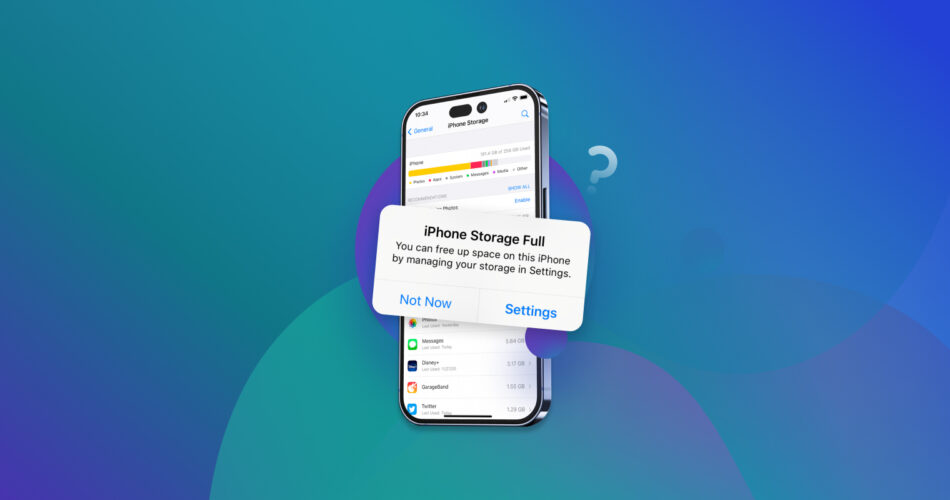
This complete smartphone storage management guide walks you through proven, step-by-step strategies for both Android and iPhone. You’ll learn exactly how to reclaim gigabytes in minutes, boost performance, extend battery life, and prevent the problem from coming back. No tech expertise required—just follow along and watch your phone feel brand new again.
Read Also: How to Save Mobile Data: 18 Genius Tips That Cut Usage by Up to 80% (Android & iPhone)
Why Smartphone Storage Management Matters More Than Ever in 2026
Full storage isn’t just annoying—it slows your phone, drains battery, blocks OS updates (critical for AI features), and even creates security risks. Photos and videos usually eat 40-60% of space, followed by apps, cached data, and “Other/System” files.
Trending Now: 100,000 Coupon Bundle + 30% OFF, Click Here. Use this code “alh190663” on Check out.
The best part? Modern Android and iOS 26 have built-in smart tools that do most of the heavy lifting. Let’s start by diagnosing the problem.
See More Posts in Jobs, Scholarships, Technology, Career/Motivations, Football News Feeds
Step 1: Quickly Check What’s Eating Your Storage
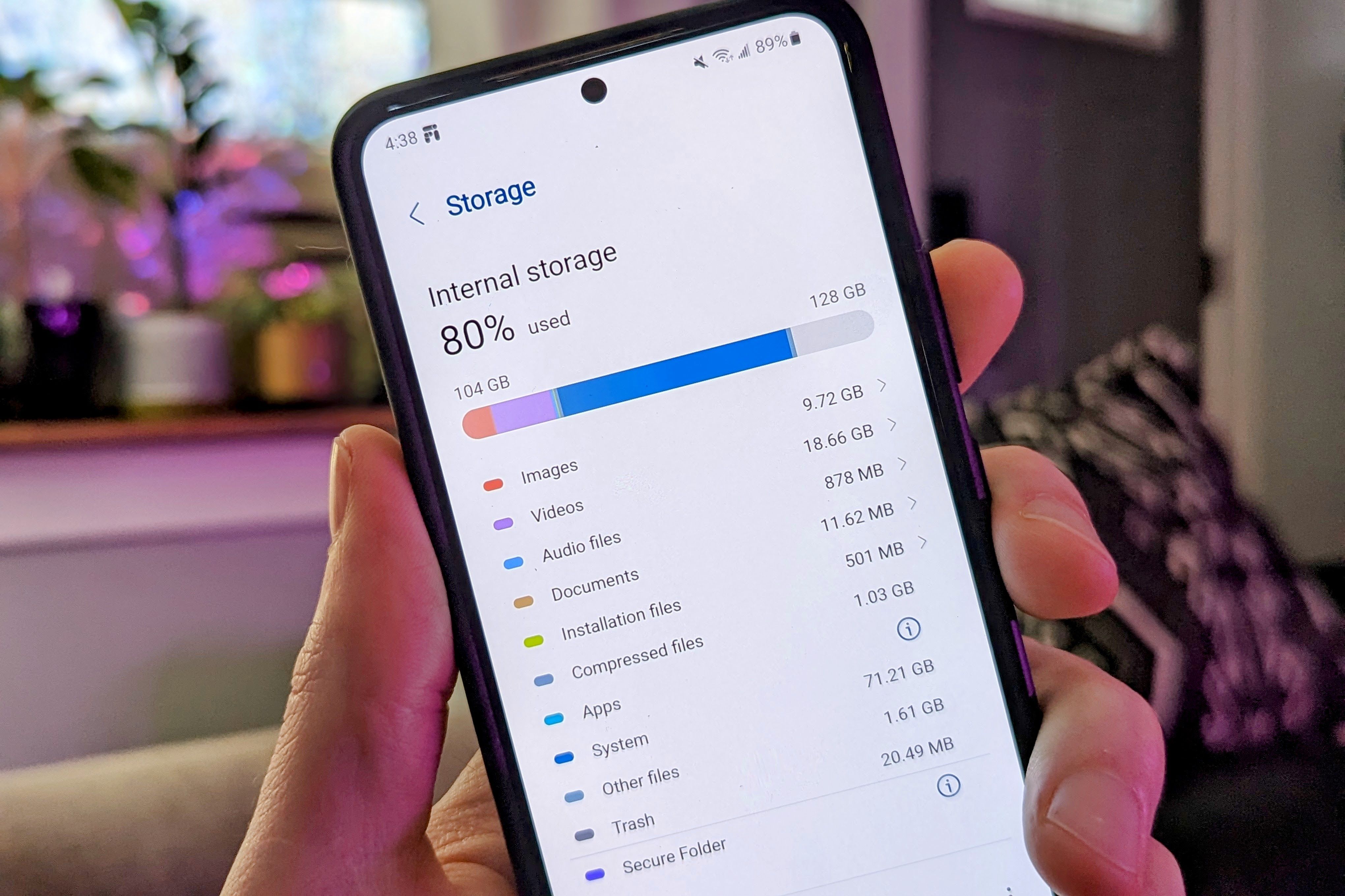
On Android (most devices in 2026):
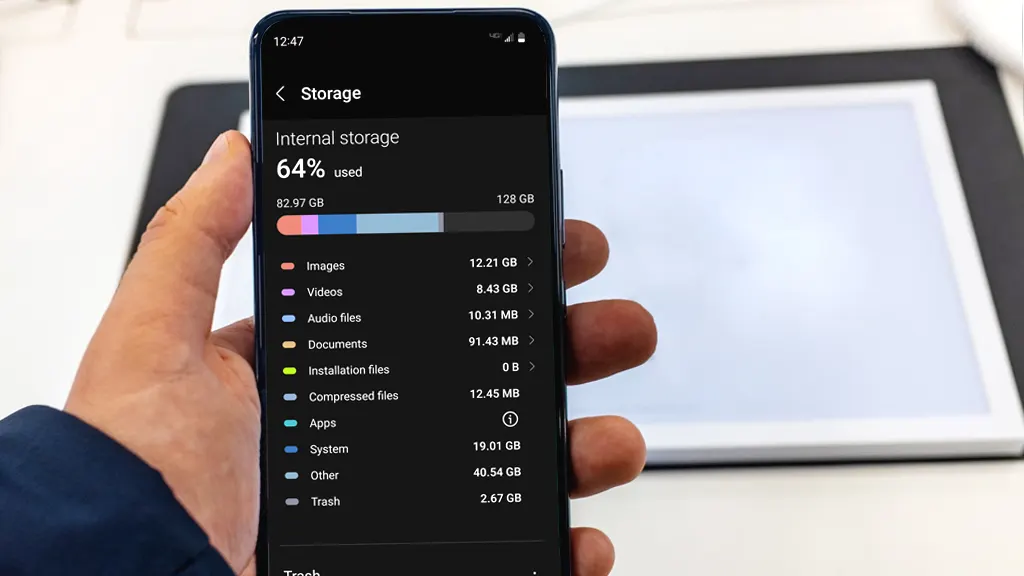
- Swipe down from the top → tap the gear icon → Storage (or search “Storage”).
- You’ll see a colorful breakdown: Images, Videos, Apps, Documents, etc.
On iPhone (iOS 26):
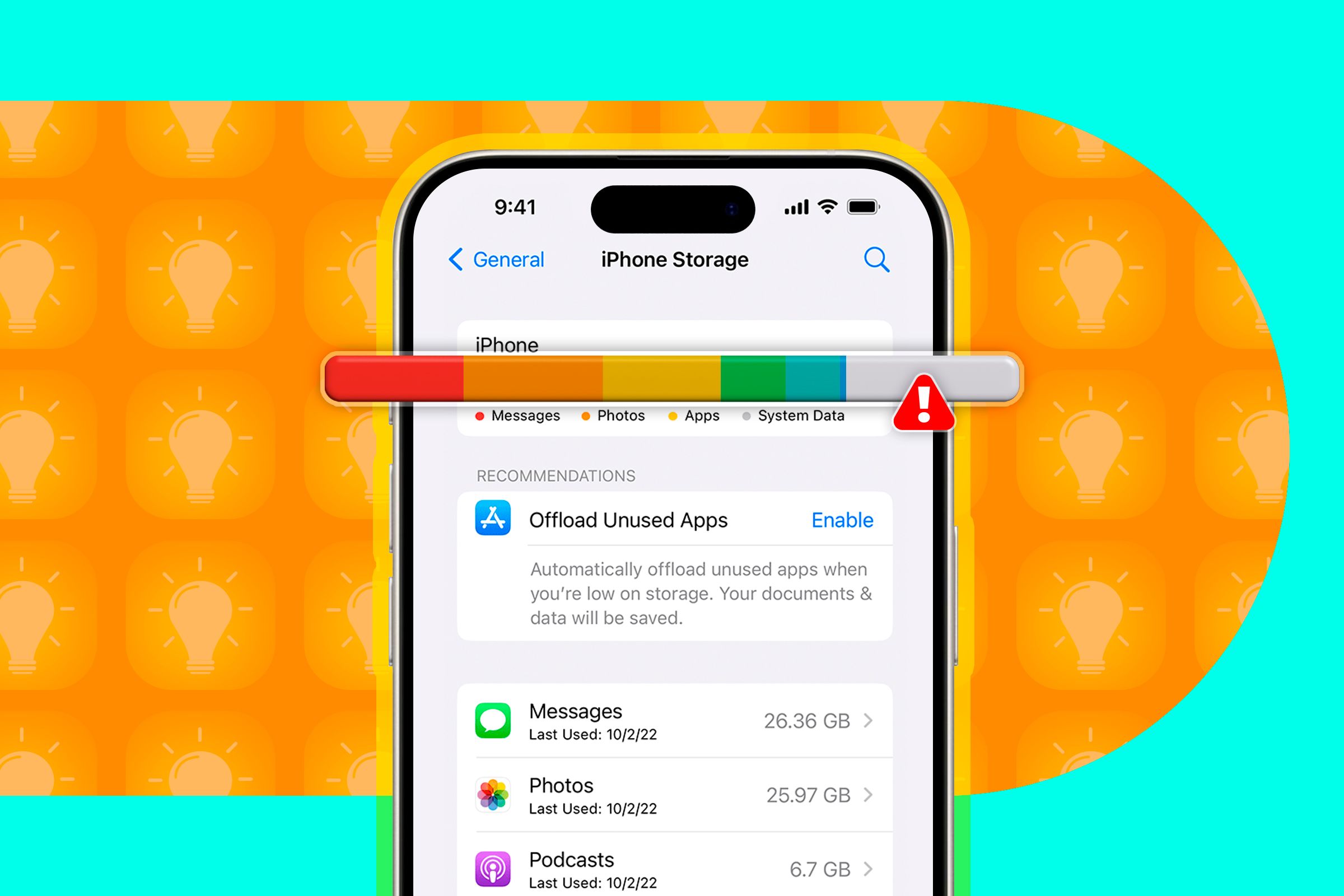
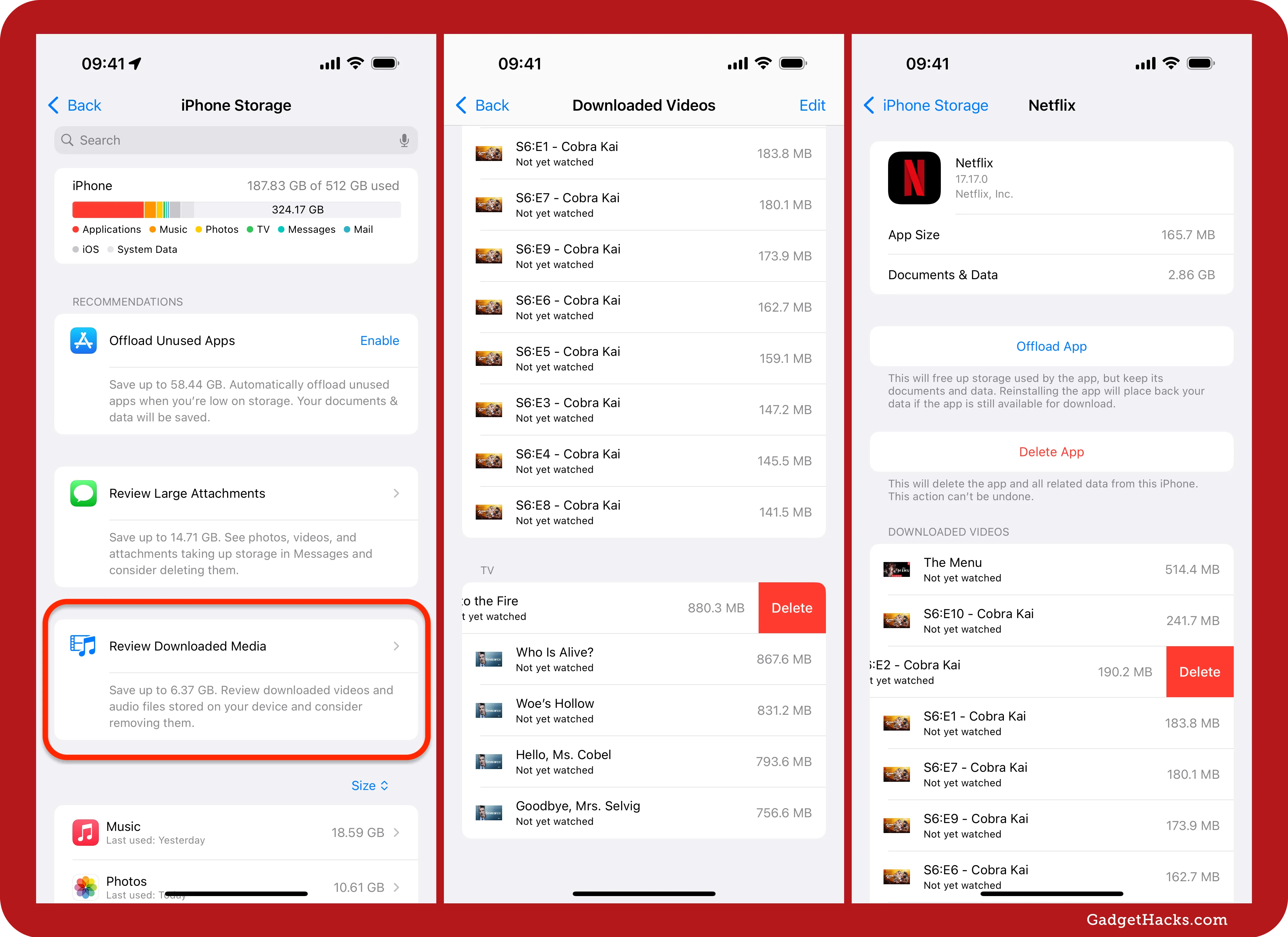
- Go to Settings > General > iPhone Storage.
- Wait a few seconds for the full report. You’ll see recommendations like “Offload Unused Apps” and exactly how much space Messages or Photos are using.
Pro tip: Do this check monthly. It takes 30 seconds and saves hours of frustration.
Android Storage Management: 2026’s Best Tricks
Android gives you more granular control—perfect for power users.
- Use the Built-in Files App (or Google Files) for Instant Cleanup Open the Files app → tap Clean or Junk files. It safely removes duplicate files, old downloads, and cache without touching your photos. Many users reclaim 5-15 GB here alone.
- Clear App Cache the Smart Way Settings > Apps > [App] > Storage & cache > Clear cache. Do this for WhatsApp, Instagram, TikTok, and Chrome first—they’re notorious cache hogs. (Clearing data resets the app, so only use it if needed.)
- Delete or Offload Unused Apps Long-press app icons or go to Settings > Apps. Uninstall anything you haven’t opened in months. Android’s “Unused apps” section makes this effortless.
- Tame Photos & Videos
- Open Google Photos → Library > Utilities > Manage storage or Free up space.
- Enable Backup & sync then delete device copies.
- Turn on Storage saver to compress new photos automatically.
- Manage Downloads and Large Files In Files app, sort by size and trash anything over 100 MB you don’t need.
Bonus 2026 Android feature: Many devices now auto-archive unused apps and show “Smart Storage” suggestions right in Settings.
iPhone Storage Management: iOS 26 Makes It Ridiculously Easy
Apple simplified everything in iOS 26 with smarter recommendations.
- Enable “Offload Unused Apps” In iPhone Storage, tap Enable next to Offload Unused Apps. Apps disappear from your home screen but keep documents and data. Reinstall with one tap. Users routinely save 10-50 GB.
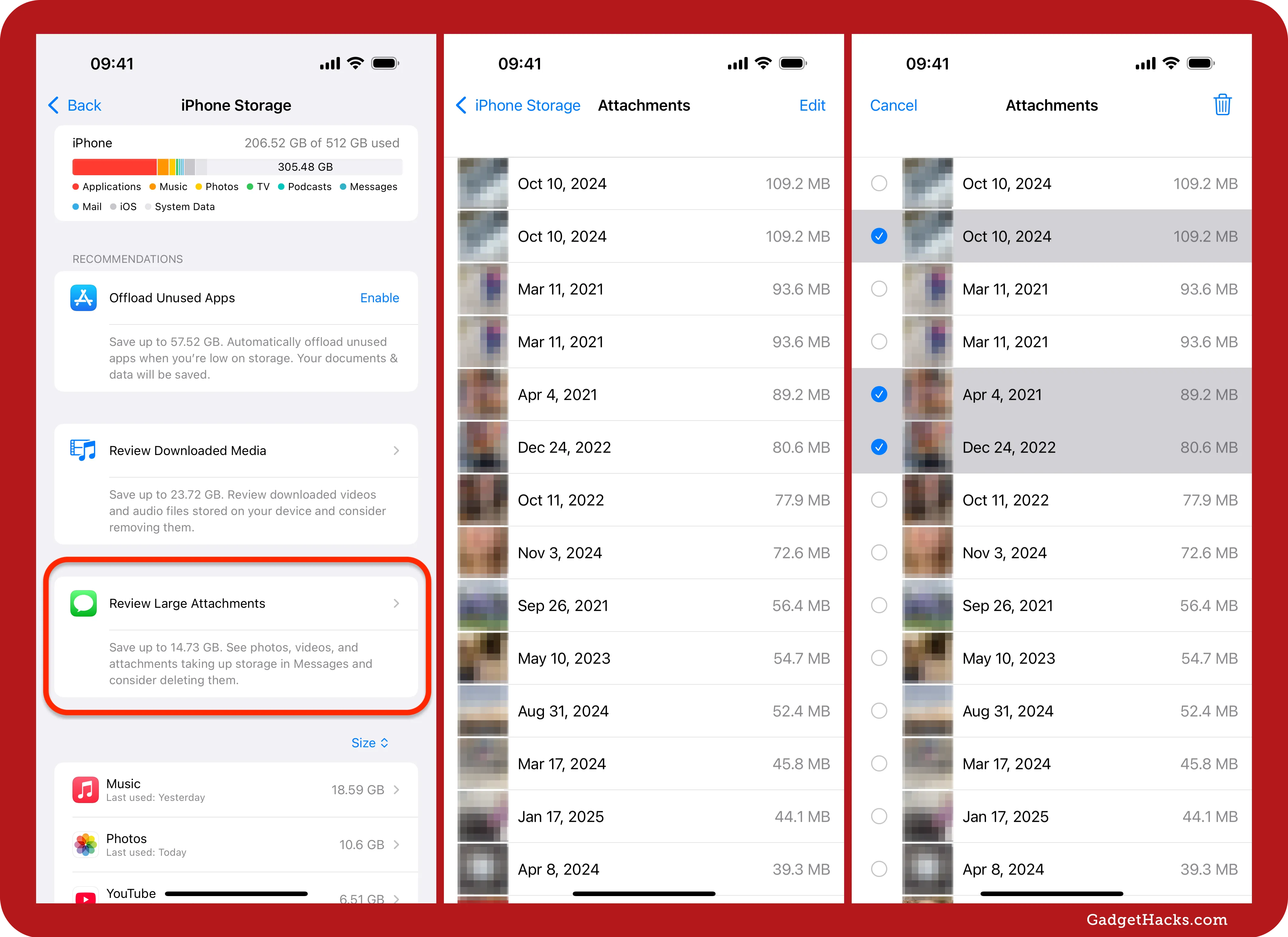
- Review Large Attachments & Downloaded Media Scroll to “Review Large Attachments” in Messages or “Review Downloaded Media.” Delete old videos and podcasts in bulk.
- Optimize iCloud Photos Settings > [Your Name] > iCloud > Photos > Optimize iPhone Storage. Full-resolution originals stay in the cloud; your phone keeps smaller versions.
- Clear Safari & System Cache Settings > Safari > Clear History and Website Data. For stubborn “System Data,” restart your phone or offload big apps temporarily.
- Messages Trick Auto-delete old conversations or review large attachments—WhatsApp and iMessage media can hide 20+ GB.
Check This: Redmi Note 15 Pro+ 5G Full Specs: 200MP Camera, 6500mAh Battery & Snapdragon 7s Gen 4
Universal Smartphone Storage Management Tips That Work for Both
These hacks apply whether you have a Samsung, Google Pixel, iPhone 17, or anything in between:
- Cloud Backup Is Your Best Friend — Google One or iCloud+ plans start cheap. Back up once, delete from device forever.
- Delete Duplicates Automatically — Google Photos and Apple Photos now detect duplicates with AI—use it!
- Empty the Trash — Photos, Files, and even email apps keep “deleted” items for 30 days. Empty them.
- Streaming Over Downloading — Use Spotify, Netflix, YouTube Music offline only when traveling.
- SD Card (Android Only) — If your phone supports it, move photos/videos there for instant relief.
- Third-Party Helpers (Use Sparingly) — Files by Google or cleaner apps are safe, but stick to official tools first.
How to Prevent Storage Problems Forever (Maintenance Routine)
The real secret isn’t one-time cleaning—it’s building better habits:
- Weekly: Run the built-in cleaner.
- Monthly: Review iPhone Storage or Android Storage report.
- Always: Turn on automatic photo backups + optimize storage.
- Set a rule: If you haven’t used an app in 3 months, offload or delete it.
Follow this and you’ll rarely see that dreaded “Storage Full” warning again.
Your Phone, Reborn
You just learned the exact smartphone storage management system that thousands use in 2026 to keep their devices lightning-fast and clutter-free.
Pick one section above (I recommend starting with the built-in storage checker) and do it right now. You’ll be shocked how much space you free up in under 10 minutes.
Which tip surprised you most?
Bookmark this guide and share it with friends who are always complaining about full storage. Your future self (and your phone’s battery) will thank you.
Last updated: April 2026. Tips tested on latest Android and iOS 26 devices.