

Your smartphone knows more about you than your best friend does. It tracks where you sleep, what you search at 2 a.m., who you text, and even what you say out loud. And the scary part? Over 77% of mobile apps leak sensitive personal data through insecure practices.
Creepy targeted ads that feel like mind-reading? Apps quietly recording your location or microphone? It’s not paranoia — it’s default settings working against you.
The good news: You can lock it down in under 15 minutes. These 10 privacy settings (updated for iOS 26 and Android 2026) stop apps from spying, slash data collection, and give you back control — without sacrificing convenience.
Ready to stop the surveillance? Let’s dive in.
Trending Now: 100,000 Coupon Bundle + 30% OFF, Click Here. Use this code “alh190663” on Check out.
10 Smartphone Privacy Settings You Should Change Immediately
See More Posts in Jobs, Scholarships, Technology, Career/Motivations, Football News Feeds
1. Disable Personalized Ads (And Reset Your Advertising ID)
Apps and advertisers build a detailed profile of you using your Advertising ID. Turning this off kills hyper-targeted ads and limits cross-app tracking.
Why it matters: Personalized ads aren’t just annoying — they fuel massive data brokers who sell your habits.
On iPhone (iOS 26):
- Go to Settings > Privacy & Security > Apple Advertising.
- Toggle off Personalized Ads.
On Android:
- Go to Settings > Privacy > Ads (or Google > Ads on some devices).
- Toggle off Ad personalization and tap Delete advertising ID (or “Reset”).
Pro tip: Do this first — it’s the single biggest privacy win with zero downside.
2. Block Apps from Requesting to Track You Across Apps
App Tracking Transparency (iOS) and equivalent ad-tracking on Android let apps follow you everywhere. Shut it down permanently.
Why it matters: This stops the invisible trackers that power the “creepy ad” phenomenon.
On iPhone:
- Settings > Privacy & Security > Tracking.
- Toggle off Allow Apps to Request to Track.
On Android:
- Use the Privacy Dashboard (see #9) and review tracking permissions, or disable via Google Ads settings above.
Pro tip: New apps won’t even ask anymore — pure silence.

It’s Time to Stop Using Face ID. Here’s Why | PCMag
3. Fine-Tune Location Services (No More Precise Tracking or Significant Locations)
Your phone doesn’t just know where you are — it remembers everywhere you’ve been.
Why it matters: Location history is gold for advertisers and a privacy nightmare if your phone is ever compromised.
On iPhone:
- Settings > Privacy & Security > Location Services.
- For each app: Change “Precise Location” to off (use approximate for weather, maps, etc.).
- Scroll to System Services > Significant Locations (or “Significant Locations & Routes”) and turn off or clear history.
On Android:
- Settings > Location > App permissions.
- Set to “Approximate location” or “While using the app” for non-essential apps.
- Turn off Google Location History via your Google Account settings.
Pro tip: Keep it on for navigation and ride-sharing only.
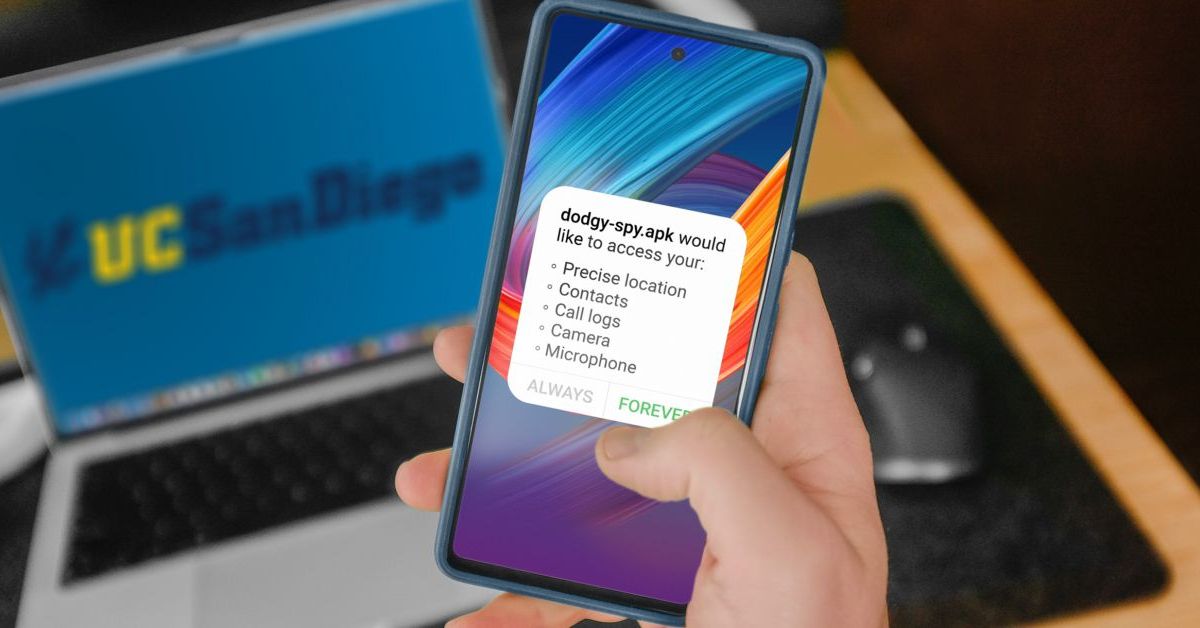
4. Lock Down Camera & Microphone Access
Apps love “always on” access to your camera and mic — even when you’re not using them.
Why it matters: Microphone access = potential always-listening. Camera = visual spying.
On both platforms:
- Settings > Privacy & Security (iOS) or Settings > Privacy > Permission manager (Android).
- Review Camera and Microphone — set to “Never” or “While using” for everything except trusted apps (e.g., WhatsApp for calls).
Pro tip: iOS and recent Android show orange/green dots when mic/camera is active — use them as your watchdog.
5. Restrict Contacts, Photos & Other Sensitive Permissions
Full access to your contacts or photo library lets apps copy your entire address book or private pictures.
On iPhone:
- Settings > Privacy & Security > Contacts (or Photos).
- Change to Limited Access or None wherever possible.
On Android:
- Settings > Privacy > Permission manager > Review Contacts, Photos & videos, etc.
- Use Android’s Photo Picker instead of full library access.
Pro tip: If an app insists on full access and you don’t trust it — delete the app.
6. Turn Off Analytics & Improvements Sharing
Your phone constantly sends usage data, crash reports, and diagnostics to Apple or Google — and sometimes third parties.
Why it matters: This “anonymous” data often isn’t as anonymous as it sounds.
On iPhone:
- Settings > Privacy & Security > Analytics & Improvements — turn everything off.
- Also disable Apple Intelligence Report if you see it.
On Android:
- Settings > Privacy > Usage & diagnostics (or Google Account > Data & privacy > Web & App Activity) — pause or delete.
7. Disable Wi-Fi & Bluetooth Scanning
Your phone constantly scans for nearby networks and devices to “improve” services — while leaking your location.
On Android (most impactful):
- Settings > Privacy (or Location/Network) > Turn off Wi-Fi scanning and Bluetooth scanning.
On iPhone:
- Settings > Privacy & Security > Location Services > System Services — turn off Networking & Wireless where possible.
8. Hide Sensitive Notification Previews on Your Lock Screen
Anyone glancing at your phone (or a thief) can see messages, emails, and banking alerts.
On iPhone:
- Settings > Notifications > Show Previews → set to When Unlocked.
On Android:
- Settings > Notifications > Lock screen → choose Hide sensitive content or “Don’t show notifications.”
9. Use the Privacy Dashboard / App Privacy Report (Your New Best Friend)
This is the control center you didn’t know existed.
On iPhone: Settings > Privacy & Security > App Privacy Report — turn it ON and review weekly.
On Android: Settings > Privacy > Privacy Dashboard — see exactly which apps used location, camera, or mic in the last 24 hours.
Pro tip: Check it monthly and revoke anything suspicious.

10. Turn Off AI Data Collection (Apple Intelligence & Google Gemini)
New AI features love your data for “training.” Shut them down if privacy > convenience.
On iPhone: In Privacy & Security, review and disable Apple Intelligence data sharing options.
On Android: Disable Gemini history and AI personalization in Google settings.
Bonus 2026 Quick Wins
- Enable Stolen Device Protection (iPhone) or Theft Detection Lock (Android).
- Set Wired Accessories to “Ask every time” (iPhone).
- Use Private Space (Android) for banking/health apps.
Check This: iPhone 17e Full Specs 2026: A19 Chip, 48MP Camera, 256GB Storage & MagSafe – Official Details
Take Action Right Now — Your Future Self Will Thank You
These 10 changes take minutes but deliver years of protection. Your phone will feel the same… but it will finally stop spying on you.
Do it today. Open Settings, follow the steps, and breathe easier knowing you’re no longer the product.
Which setting surprised you the most? and share this guide with anyone still using default settings. Your friends’ data (and yours) will thank you.
Stay private, stay safe.